Requests and leads
A lead is anyone who has asked for work and does not have a price yet. Every lead lands in the same place, so nothing lives on a sticky note.
Four ways work comes in
- Online booking: the customer picks services, sees a price and chooses days for you to come look at the job, or for the work itself.
- Your own website’s form, if you have a website of your own.
- A phone call or text, which you type in.
- An open request from someone nearby who asked Northfork for help.
Each one shows on Jobs under Leads and, until you act, on Today or Follow up. Where it came from is recorded for Numbers.
Online bookings
Your booking page lists the services you show on your website (Show on website), with your prices. The customer picks what they need, up to three days that suit them and a time of day, and leaves their details. Nobody has to call.
You choose what the day they pick means, under Settings, Online booking, When a customer books:
- Visit first (the setting every company starts with): the day is for you to come look at the job. You send the estimate after the visit.
- Book the work: the day is the work day, and the estimate goes out to sign when you confirm.
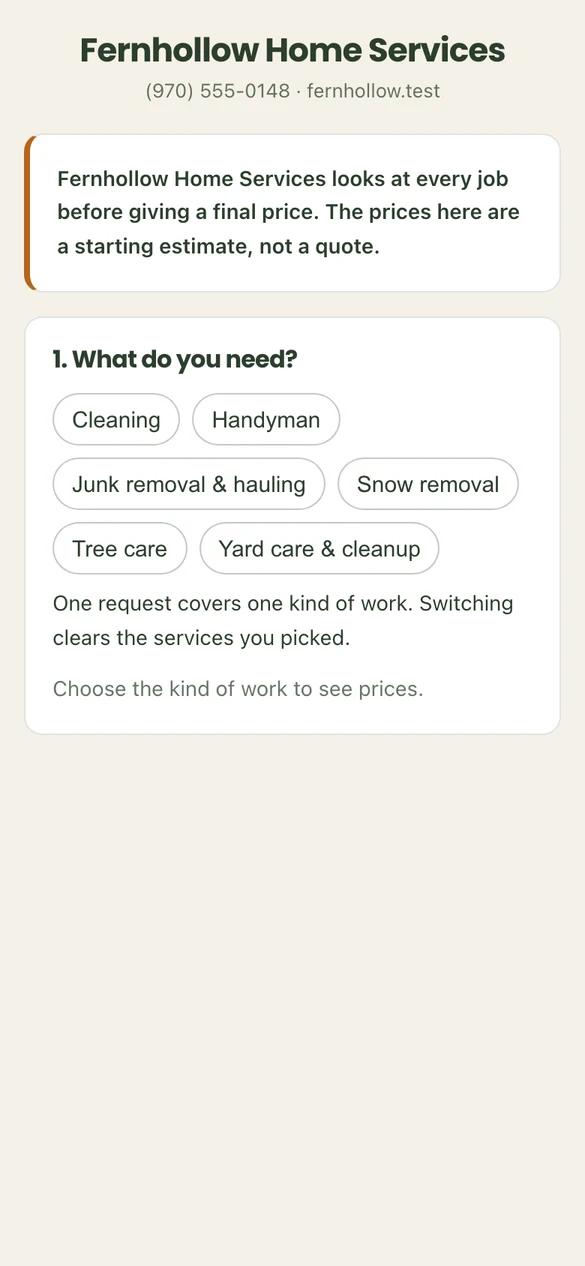
With Visit first, the booking page says the prices are a Starting estimate, not a quote, and the button reads Request a visit. Under it the customer reads that this books a visit, not the work, and that nothing is scheduled or charged until they approve your estimate.
- The request appears on Today under Visit requests, with the starting estimate and the customer’s note.
- Press Confirm visit on the day you want, for example Confirm visit Tue, Nov 17 · morning. A one-hour visit goes on your schedule, at 8 AM for a morning or any-time request and at noon for an afternoon. The job shows Site visit booked. The customer gets an email that the visit is set, and a text if they agreed to texts. No estimate is sent yet.
- After the visit, open the job. It says After the visit: check the estimate, change anything you saw on site, then send it. The estimate the customer picked online is already there. Press Edit estimate to change it, then Send estimate.
- Sending the estimate takes the visit off the schedule. Once the customer signs, schedule the work as you would any job. See Schedule and crew.
With Book the work, the booking page shows Your price and the button reads Send my request.
- The request appears on Today under Booking requests, with the price and the customer’s note.
- Press Confirm on the day you want. The job is scheduled for that day and the estimate is emailed to the customer to sign.
Changing the setting changes new bookings only. A request that is already waiting keeps the way it was booked.
Your booking link is under Settings, Online booking, with a snippet to put a Book now button on another website. Choose which services can be booked under Website.
Your own website's form
If you already run a website, its request form can send straight to Northfork Trades. Under Settings, Online booking, Website leads, make a key and give it to whoever runs the site. Each request becomes a new lead with the customer’s details and message filled in, and your admins get an email.
A phone call or a text
- Press New Estimate on Today.
- Type the customer’s name, address, phone and email, and pick How did they find you?.
- Write what they asked for in the notes on the next step. Stop there if you need to: the draft waits on Today under Estimates you are writing.
Tick Customer agreed to receive text updates only if they said yes. It is not needed to book.
Open requests from people nearby
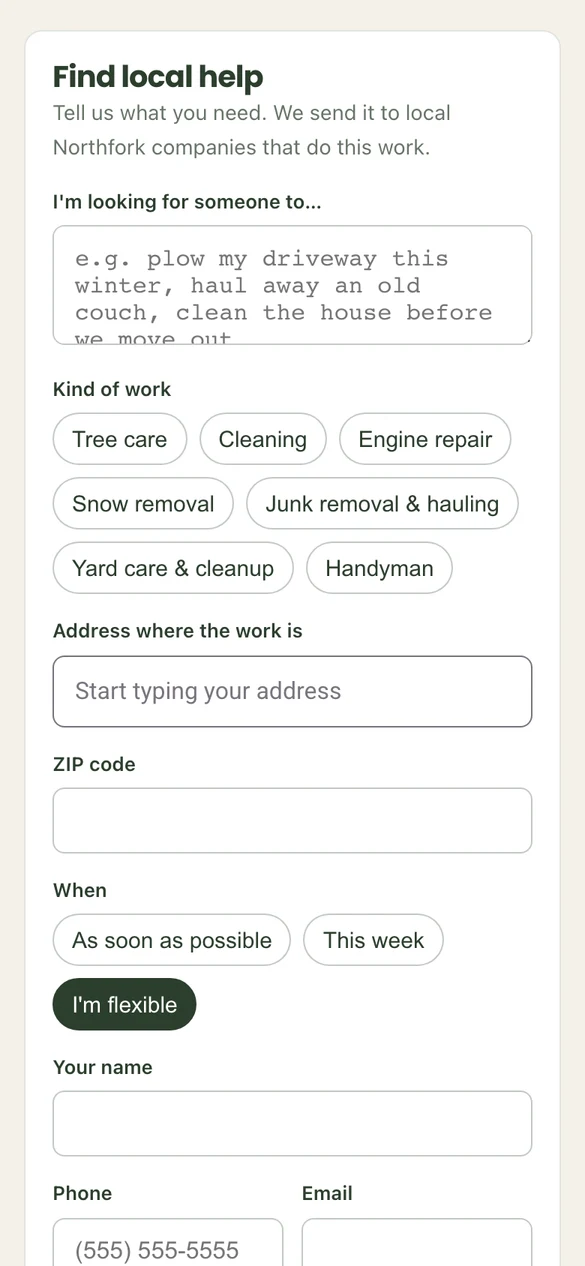
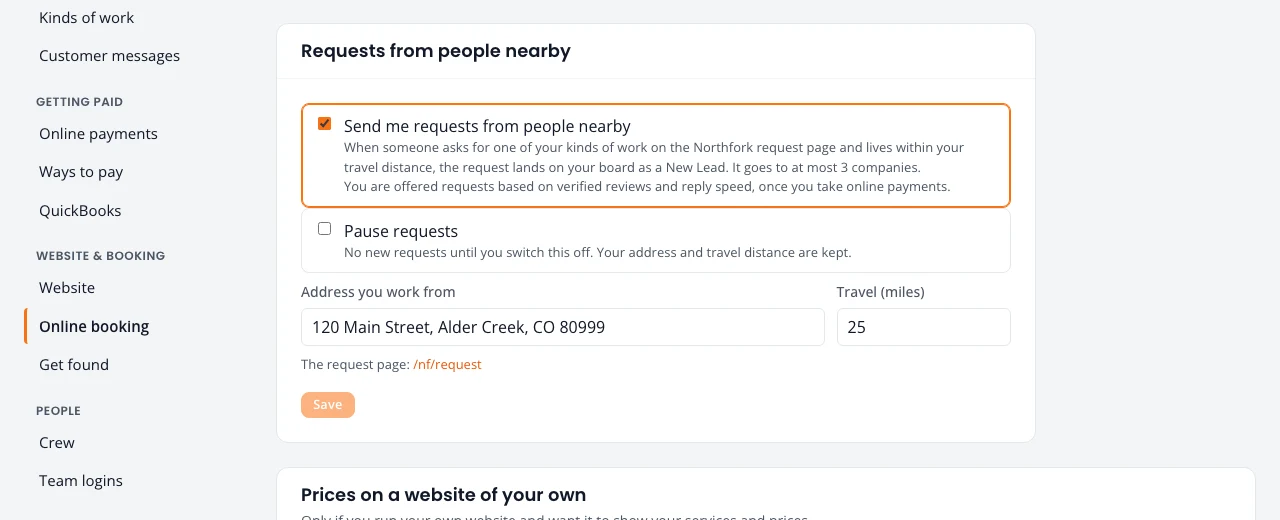
Anyone can ask for help on the Northfork request page: they describe the job, pick the kind of work and give their address. Receiving these requests is your choice. It is off until you switch on Send me requests from people nearby in Settings. Then requests for your kinds of work inside your travel distance can land on your board as new leads.
Who gets a request
- Each request goes to at most three companies.
- Places go by verified reviews (reviews from customers who paid through Northfork) and how fast you reply.
- One place is kept for a company with fewer than five verified reviews, taking turns.
- No company gets more than its share of the requests in an area.
- You are offered requests once you take online payments.
- Your plan and what you pay never affect who gets a request.
These are fixed rules, the same for everyone. Pause requests any time in Settings. See Requests from people nearby.
What a Northfork lead costs
You pay only for leads you win, and each plan includes some every month:
- Solo: 3 won leads a month included.
- Crew: 10 won leads a month included.
- Company: 25 won leads a month included.
- After that, $10 for each won lead.
A lead counts only when the customer came from Northfork’s own request page and signed your estimate.
You are never charged for:
- A job under $100.
- A job cancelled before any work is done.
- Customers from your own website or booking page.
- Customers from your own domain or your Get found links (Google, Facebook, Nextdoor).
- Customers you add yourself.
- Repeat work from a customer you already won.
- The customer marked Free: your first Northfork customer when you claimed an account we set up for you. See We set up your account for you.
Working a new lead
Open the lead from Jobs or Follow up. The job page shows one next step:
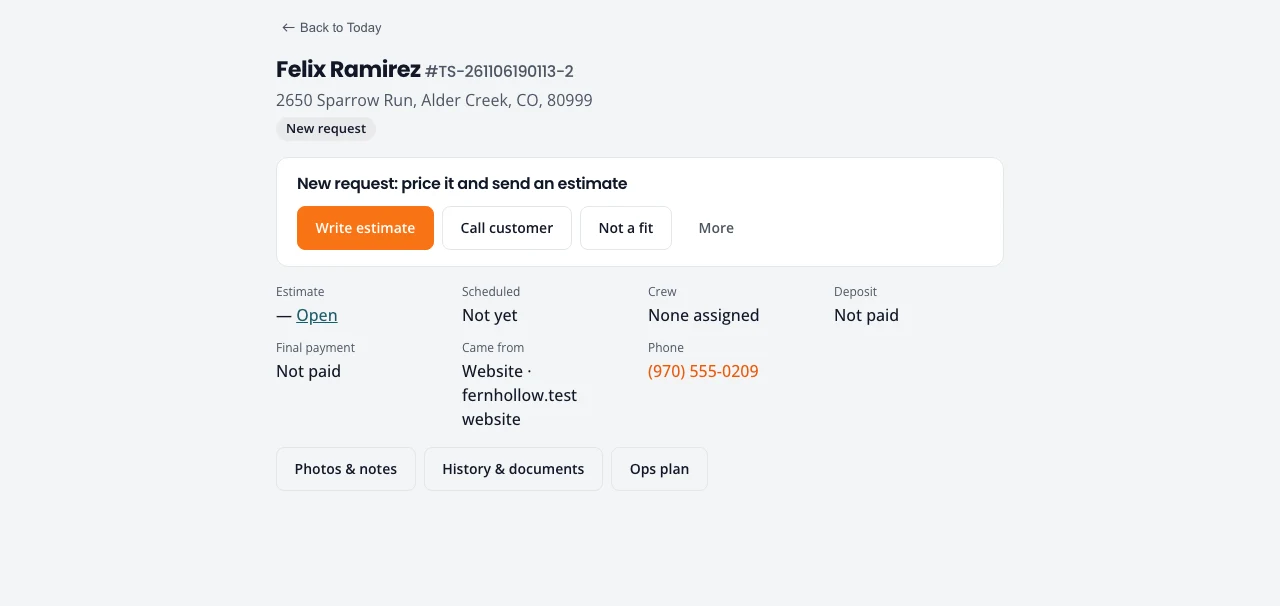
- Write estimate opens the estimate with the customer filled in.
- Call customer calls from your phone.
- Not a fit closes the lead as lost. It stays on record at the bottom of Jobs.
Stuck on something? Email support@northforktrades.com and tell us what you were trying to do.